
For each of your patients, in their respective virtual waiting room, the setting customization feature is active (without usability limits):
- click on the respective
 and view the section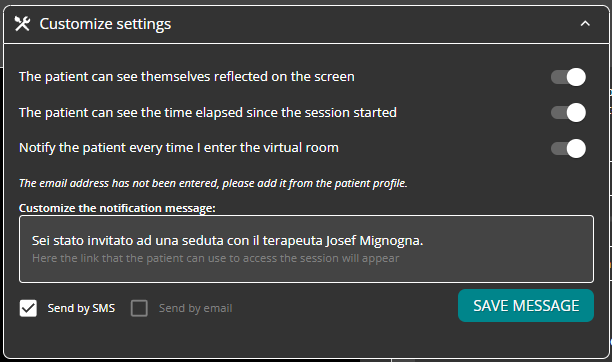
- You can independently “enable”/”disable” the options you see.
by clicking on the respective ” “/ ”
“/ ”  ”
” - The patient can see himself reflected in the screen
- The patient can see the time elapsed since the beginning of the session
- Notify the patient when I enter the virtual room
When you enable this option, you have the related customization feature:- Customize the alert message:
type the text you think is appropriate for that patient - Choose how to notify the patient
you can forward a e-mail and/or send him a SMS - SAVE MESSAGE what do you want to send him?
- Customize the alert message:
- You can independently “enable”/”disable” the options you see.
- click on
 to close the settings customization section when you have finished customizing
 - You can proceed and access your virtual room by clicking ENTER.
- click on
General features
When you enter your virtual waiting room, you can, depending on your needs:
→ click on  to access your virtual room;
→ select the microphone you want to use by clicking on the respective one
and choose from the alternatives available on your device;
→ select the camera you want to use by clicking on the respective one
and choose from the alternatives available on your device;
→ copy the patient contact link and share it if necessary.
