
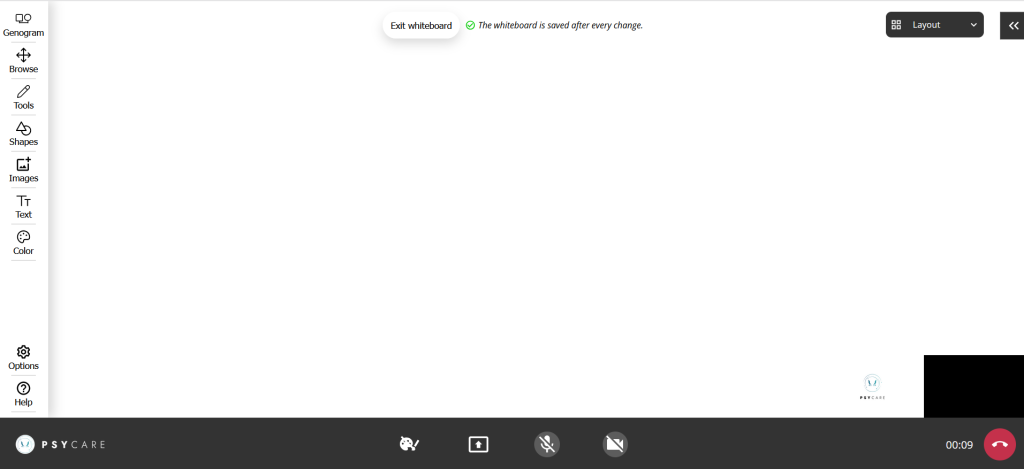
- In the PsyCare virtual whiteboard, at the top left, you will see the genogram icon:
- click on
 and access the section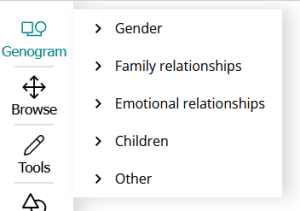
You’ll see the reference sections for each symbol category. Specifically, for each one, you have a specific reference subsection:
- Click onTypeand you see:
- Man
- Woman
- Transgender (female to male)
- Transgender (male to female)
- Click onFamily relationshipsand you see:
- Marriage
- Significant Relationship
- Coexistence
- Divorce
- Separation
- Click onEmotional relationshipsand you see:
- Normal
- Distant
- Very close
- Conflictual
- Friendship
- Neglect/Abuse
- Click onChildrenand you see:
- Son/daughter
- Adopted child
- Twins
- Pregnancy
- Spontaneous abortion
- Voluntary abortion
- Click onOtherand you see:
- Death
- Missing information
For each of the expected entries the genogram identifies a symbol.
- Click on
 and select the color you want to use to insert the symbol
 - Click on the symbol of the genogram you want to insert on the virtual whiteboard sheet:
you will see it, at the same time as your therapist, in the center of the sheet itself - Click on the
 and slide it on the sheet
 - Click on the symbol of the genogram you want to insert and proceed as described above to move the sheet
Remember: when you click, the selected symbol is inserted in the center of the virtual whiteboard; you can move and reposition it where needed.

