
Document Management
Log in to the platform with your registration credentials and click “DOCUMENTS” from the side menu to access the section.
In the ‘DOCUMENTS’ section you will see three sections:
- SHARED DOCUMENTS:
Here you can share and view all your documents in PsyCare (either entered by you or shared with you by your therapist). - IDENTITY DOCUMENTS:
Here you can share and view your personal documents (e.g. your identity card) - SIGNED DOCUMENTS:
Here you can view all digitally signed documents in PsyCare.
Shared documents Section
When you log in, you will see the SHARED DOCUMENTS section.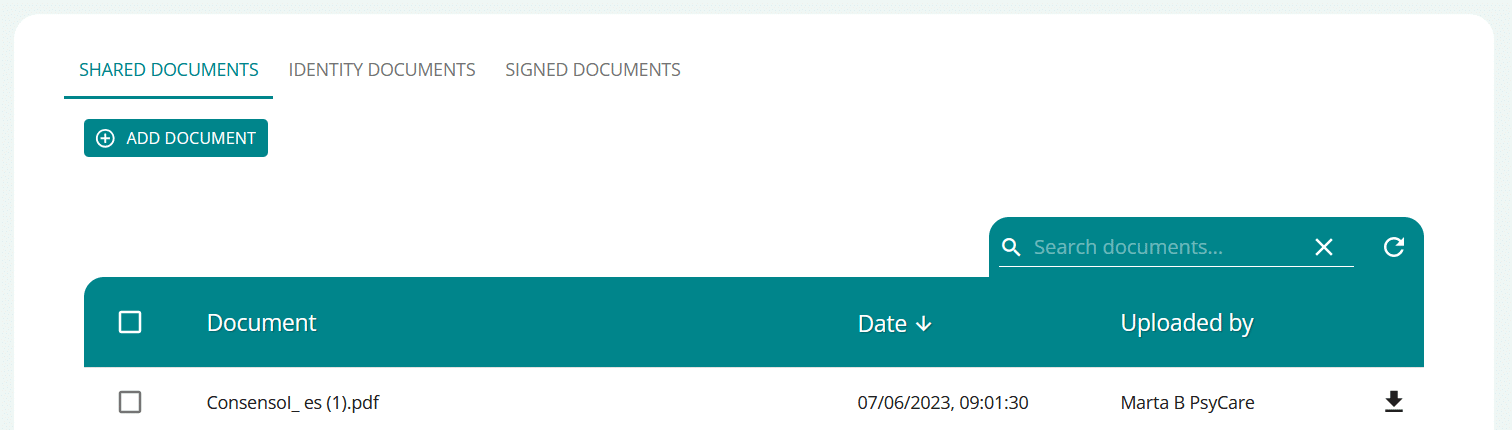
On the page you can:
- click on
 and add a new document and share it immediately on the platform with your therapist
- The uploaded document will already be available on the platform for the therapist[Supporto: Document Sharing]#atfp_close_translate_span#
- with
 search for a document among those already uploaded
 - click on
 and refresh the page
 - click on
 Download the documents available
 - click on
 SELECT to select multiple documents for download in .zip format
 - select
 →
→  on the documents tab to select multiple downloads; you will see
- click on
 to download all the selected documents in .zip format
 - click on the
 to deselect
- click on
The uploaded document will be immediately shared with the therapist and available on the platform.
Identity Documents Section
By selecting the IDENTITY DOCUMENTS item (top left of the page) you can access the section.
On the page you can:
- click on and add a new personal document and share it immediately on the platform with your therapist
- The uploaded document will already be available on the platform for the therapist
- with search for a personal document among those already uploaded
- click on and refresh the page
- click on Download your existing personal documents
- click on SELECT to select multiple documents for download in .zip format
- select → on the documents tab to select multiple downloads; you will see

- click on to download all the selected documents in .zip format
- click on the to deselect
- click on
Signed Documents Section
By selecting the SIGNED DOCUMENTS item (top left of the page) you can access the section.
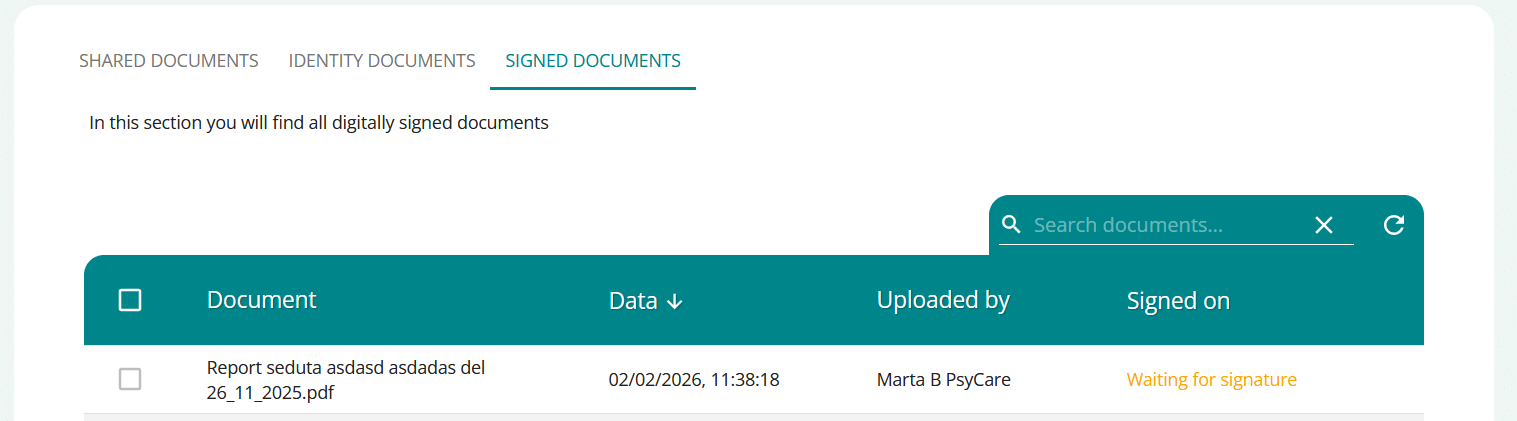
Here you can view all your digitally signed documents in PsyCare.
On the page you can:
- with search for a document among those already uploaded
- click on and refresh the page
- click on Download the documents available
- click on SELECT to select multiple documents for download in .zip (available only for signed documents)
- select → on the documents tab to select multiple downloads; you will see
- click on to download all the selected documents in .zip format
- click on the to deselect
- click on
SUGGESTION
Don't see the document you're looking for? Try refreshing the page.>
