
From the side menu click on ‘SIGN DOCUMENTS’‘ to access the section.
The process is developed in three simple steps and ends with the receipt of an email with a confirmation code, which will then be used to identify the digital signature..
In the section you see the digital signature page in PsyCare, and at the top, a support banner: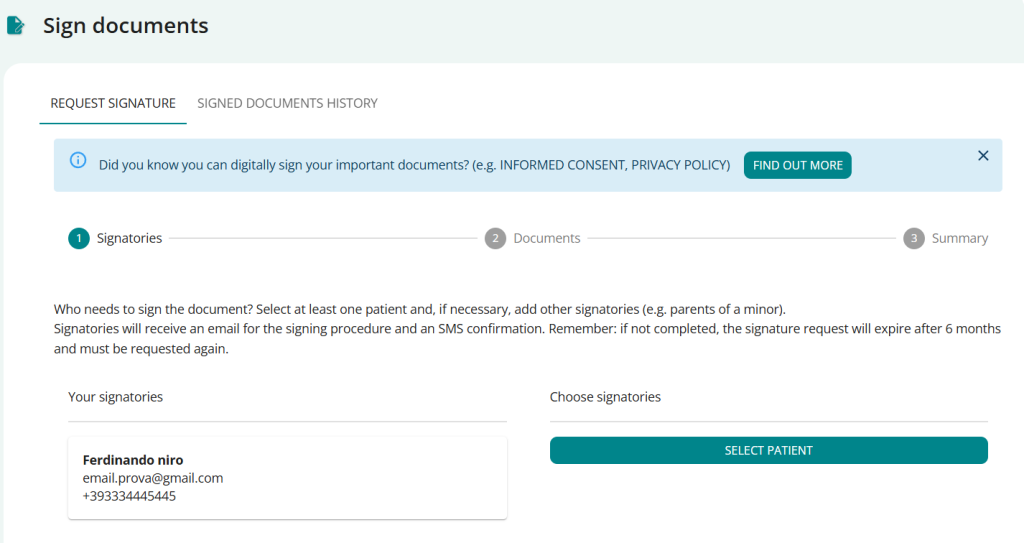
- click on FIND OUT MORE sand you don’t know the process well: you will thus access a Digital Signature details which will provide you with further information and help you clarify any doubts
- Click the X if you don’t need any further clarification: you will close the banner and you will not see it again.
In the section called SIGNATORIES, add the patient (and any additional signatories) who must sign the document(s) inserted in the step just completed:
- Your data, as a therapist, are already entered in the section, check that they are correct, otherwise you can modify them in the PERSONAL PROFILE section
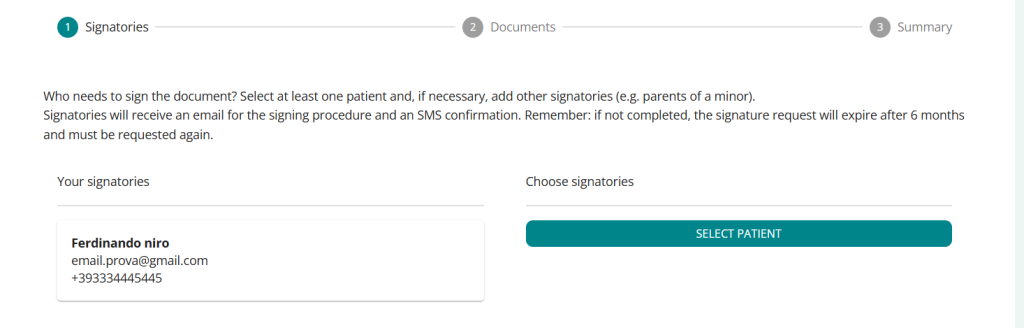
- remember: signatories cannot have special characters* in your first/last name. If necessary, update your profile information to proceed with the signature request;
- Click on SELECT PATIENT and select the patient from the list in PsyCare who must sign the document(s) and check that they are correct.
- If the patient doesn’t have an associated email address, even if they appear in the list, they won’t be able to be added as a signatory; a banner will warn you:

- if the patient contains a special character* in the name (e.g. the “,”) you will need to update his details in his profile to proceed with the signature request
- If the patient doesn’t have an associated email address, even if they appear in the list, they won’t be able to be added as a signatory; a banner will warn you:
- click on
 to remove the entered patient if you made a mistake and proceed as above to enter a new one
 - Click BACK if you want to return to the previous section to view or edit the documents inserted for digital signature.
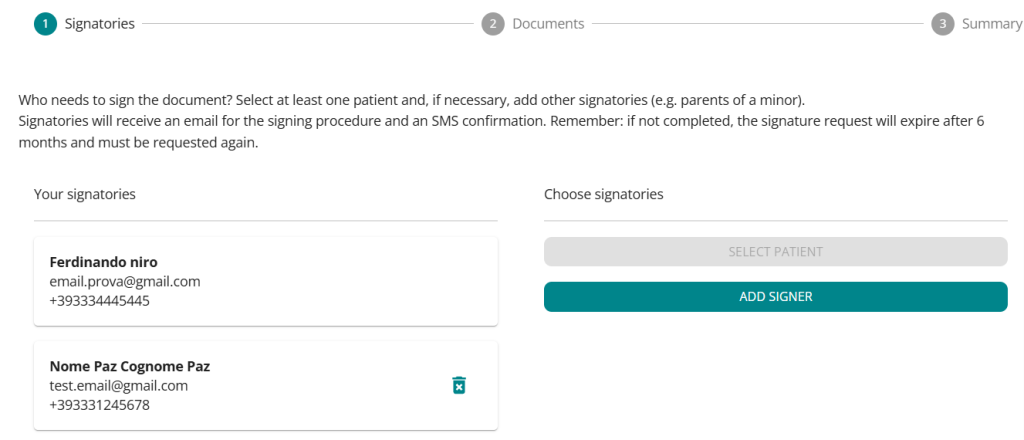
- Click on ADD SIGNATORY if you need to add a signatory for the selected patient (e.g. one or both parents, a guardian) and fill in the popup with the required data.
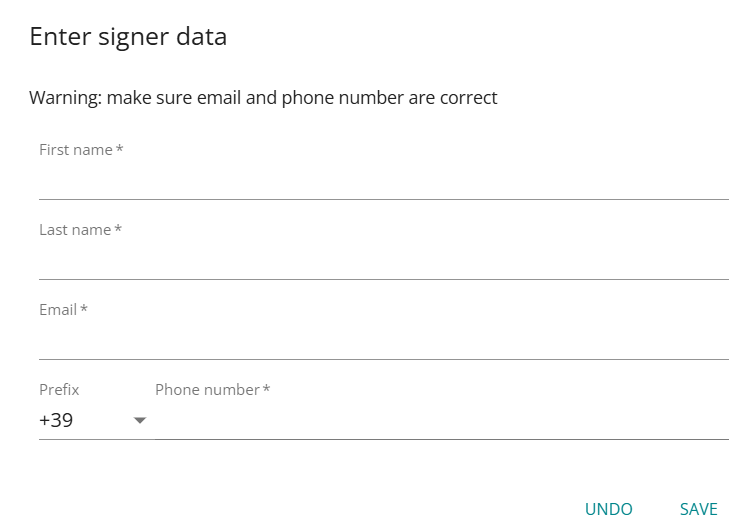
- check that all the data is correct and that there are no special characters in the name/surname (e.g. “,”);
- click CANCEL to cancel the entry and return to the SIGNATORIES page without entering the signatory;
- click NEXT to confirm the entry and return to the SIGNATORIES page with the signatory added;
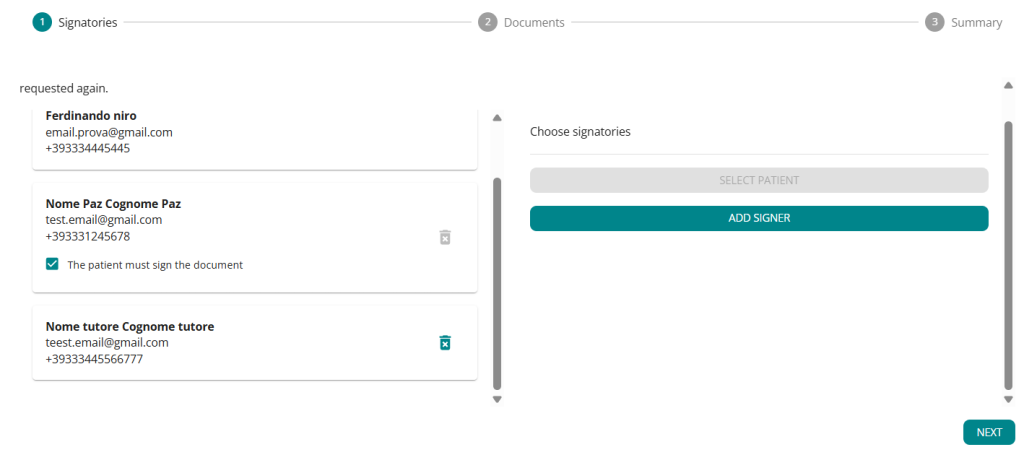
- click on to possibly remove the added signatory;
- click ADD SIGNATORY if you need to add a second signatory;
RememberYou can have up to two additional signatories; the patient is optional (e.g., a minor).
- Click BACK if you want to return to the previous section to view or edit the documents inserted for digital signature;
- Click NEXT to proceed and access the SUMMARY section to confirm and close the process in PsyCare.
In the section called DOCUMENTS, add the document(s) you want to sign: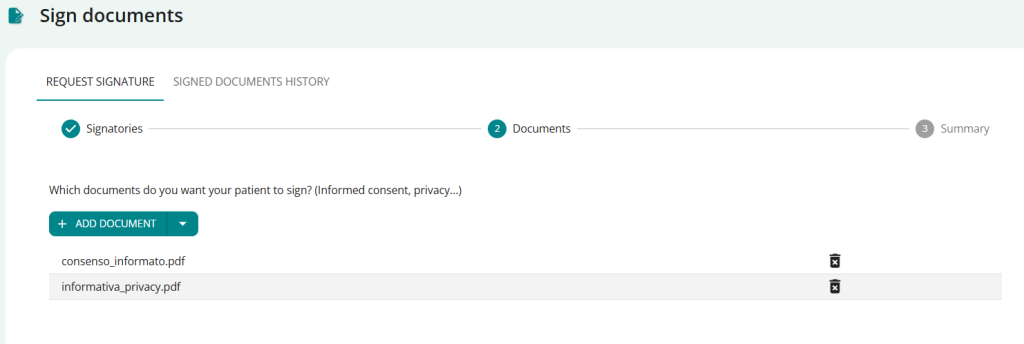
IMPORTANT: When preparing the document, remember to leave enough space for signatures, as in the following image.

- Click on ADD DOCUMENT and select from your documents or your device the document(s) you want to have signed

- click on to possibly remove a document
- Click ADD DOCUMENT to add more documents
- Click NEXT to proceed and access the SIGNATORIES section
Remember: you will always have the option to go back and possibly modify one of the sections before final confirmation.
In the third and final section, called SUMMARY, you will see:
- the document(s) you intend to have signed
- signatories who will be invited to sign via email
- the preview of the document you need to have signed
(If you have inserted more than one document, by default you will see a preview of the first document inserted)- Click on the document preview image to view it in full and to better position the signatures if necessary.
and when you’re done CLOSE the preview to return to the SUMMARY section
- Click on the document preview image to view it in full and to better position the signatures if necessary.
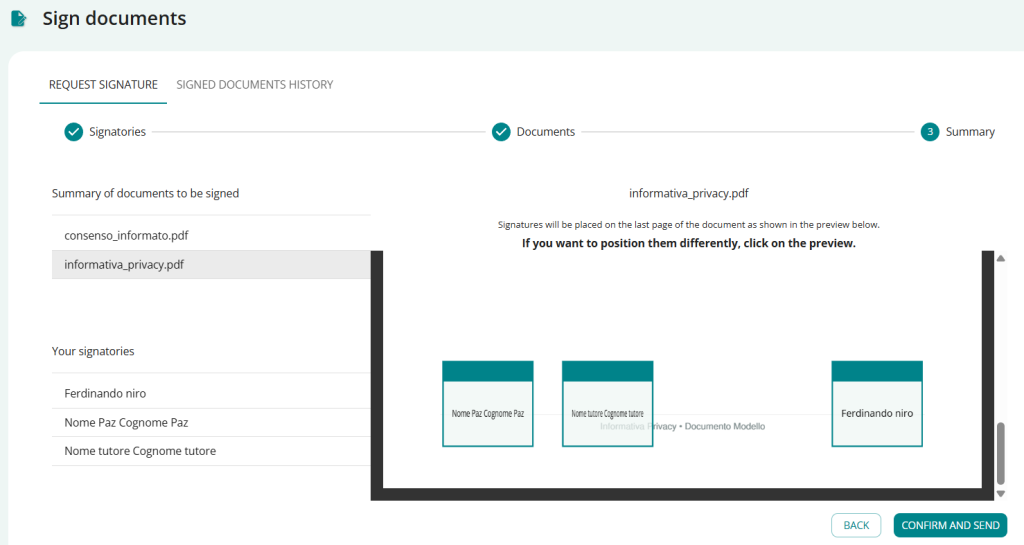
- Click on the other documents in the summary to view the preview
- Click on the document preview image to view it in full and to better position the signatures if necessary.
- when you are done CLOSE the preview to return to the SUMMARY section
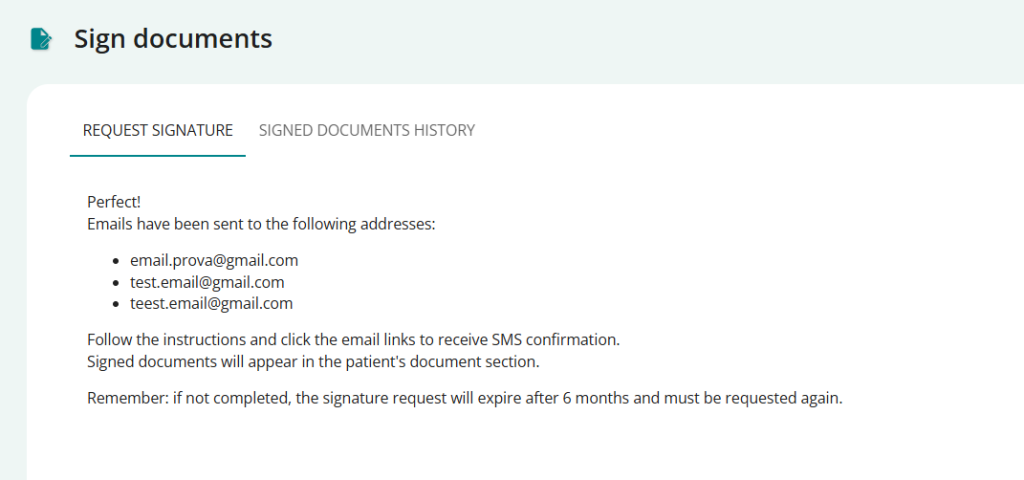
The third step is complete: signatories will receive an email to confirm and complete the signing process.
- Click on NEW DIGITAL SIGNATURE to directly start a new digital signature process in PsyCare
- Click GO TO YOUR PATIENT to directly view the profile section of the patient you just invited to digitally sign.
As a therapist/signer, you will receive an email to confirm and complete the signing process digitally.
From your email, you can proceed with the digital signature in just a few quick steps:
- Open and view the digital signature invitation email
- click on
 that you see in the email you received
 - You will see the signature request to begin the process

- Click START and scroll through the document(s) until you reach the signatures (this step is essential to proceed)
- Click on the SIGNATURE button at the bottom right
- You will see a popup to confirm your identity.

- proceed by entering the code you receive via SMS on your mobile phone
- signature in the pop-up and finish the signing process

- You will see a popup to confirm your identity.
Your documents are signed in accordance with the law!

You can download signed documents immediately or later from the Signed Documents section in PsyCare.
From the side menu click on ‘DOCUMENTS’‘ to access the section.
In the DOCUMENTS section:
- Locate the digital signature icon at the top of the page
- Click on
 and access the section.
The process is developed in three simple steps and ends with the receipt of an email with a confirmation code, which will then be used to identify the digital signature..
In the section you see the digital signature page in PsyCare, and at the top, a support banner:
- click on FIND OUT MORE sand you don’t know the process well: you will thus access a Digital Signature details which will provide you with further information and help you clarify any doubts
- Click the X if you don’t need any further clarification: you will close the banner and you will not see it again.
In the section called SIGNATORIES, add the patient (and any additional signatories) who must sign the document(s) inserted in the step just completed:
- Your data, as a therapist, are already entered in the section, check that they are correct, otherwise you can modify them in the PERSONAL PROFILE section
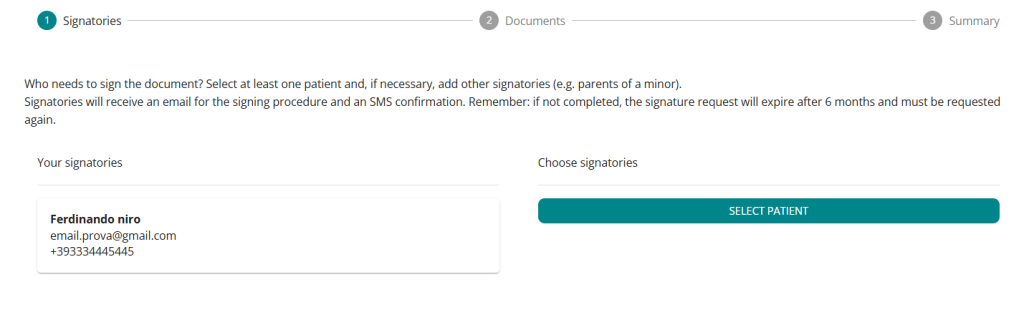
- Remember: signatories cannot have special characters in their first/last name. If so, update your profile information to proceed with the signature request.
- Click on SELECT PATIENT and select from the list in PsyCare the patient who must sign the document(s) and check that they are correct.
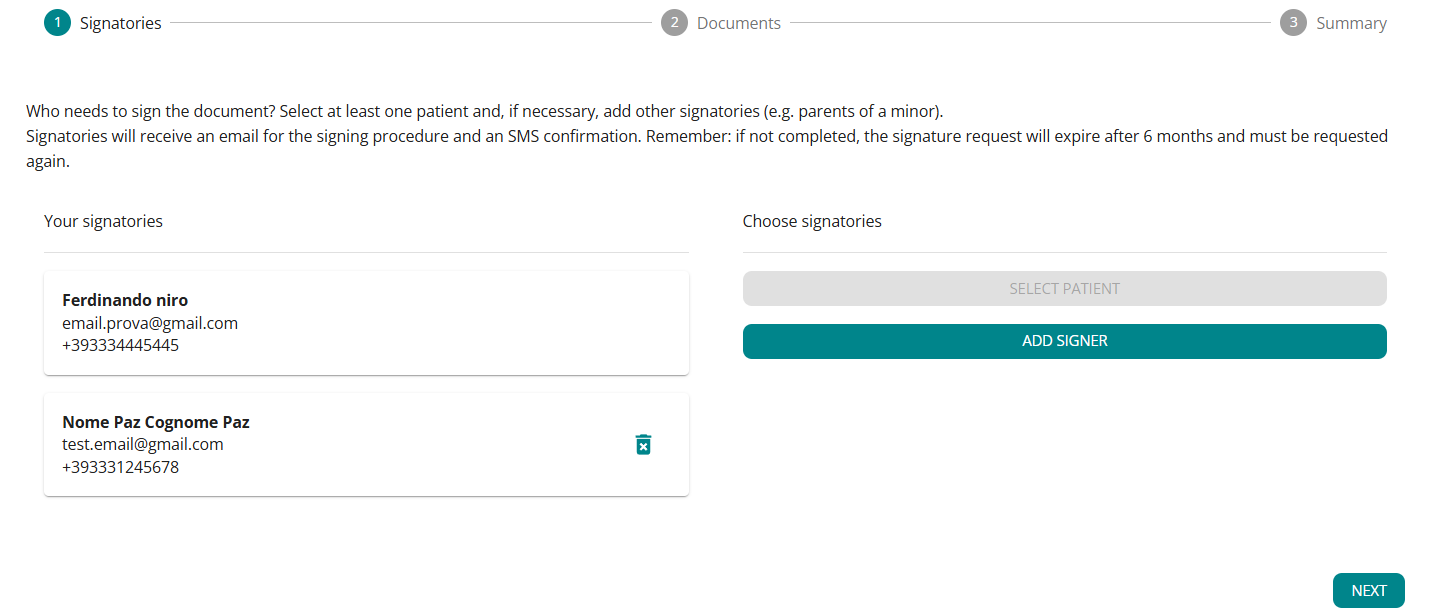
- If the patient doesn’t have an associated email address, even if they appear in the list, they won’t be able to be added as a signatory; a banner will warn you:
- If the patient contains a special character in their name (e.g. “,”)* you will need to update their details in their profile to proceed with the signature request.
- click on to remove the entered patient if you made a mistake and proceed as above to enter a new one
- Click BACK if you want to return to the previous section to view or edit the documents inserted for digital signature.
- Click on ADD SIGNATORY if you need to add a signatory for the selected patient (e.g. one or both parents, a guardian) and fill in the popup with the required data.
- check that all the data is correct and that there are no special characters in the name/surname (e.g. “,”);
- click CANCEL to cancel the entry and return to the SIGNATORIES page without entering the signatory;
- click NEXT to confirm the entry and return to the SIGNATORIES page with the signatory added;
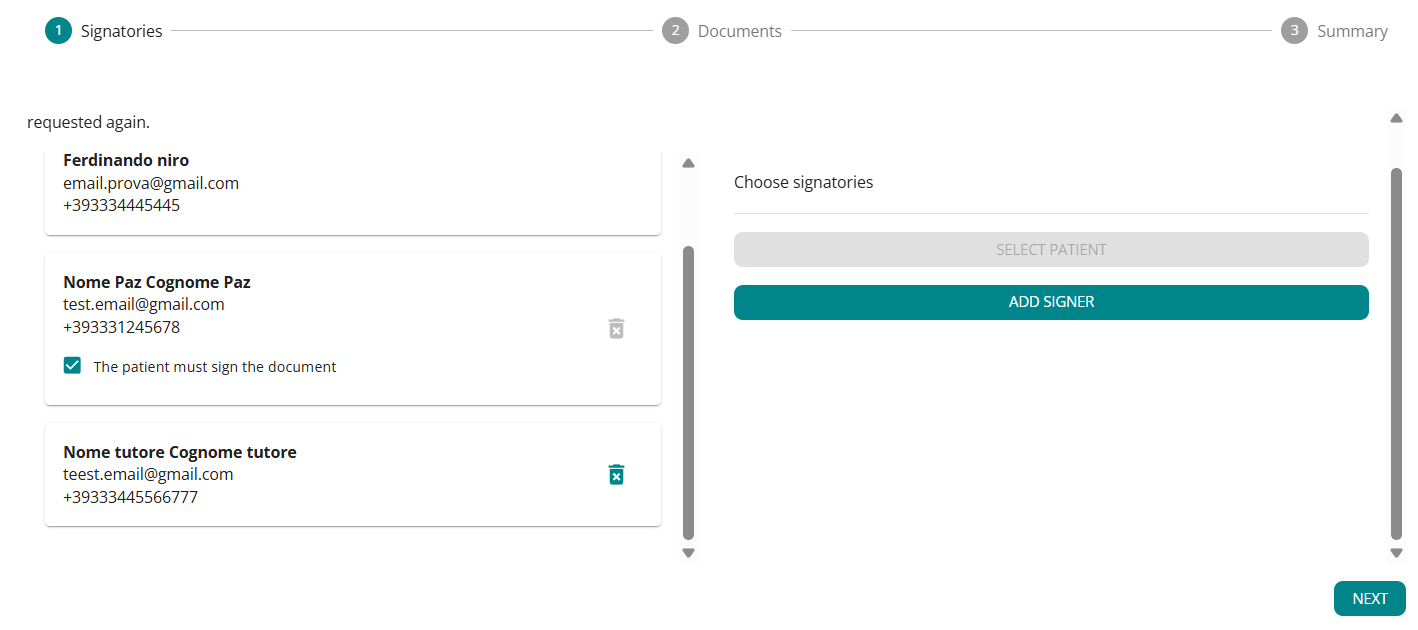
- click on to possibly remove the added signatory;
- click ADD SIGNATORY if you need to add a second signatory;
RememberYou can have up to two additional signatories; the patient is optional (e.g., a minor).
- Click BACK if you want to return to the previous section to view or edit the documents inserted for digital signature;
- Click NEXT to proceed and access the SUMMARY section to confirm and close the process in PsyCare.
In the section called DOCUMENTS, add the document(s) you want to sign: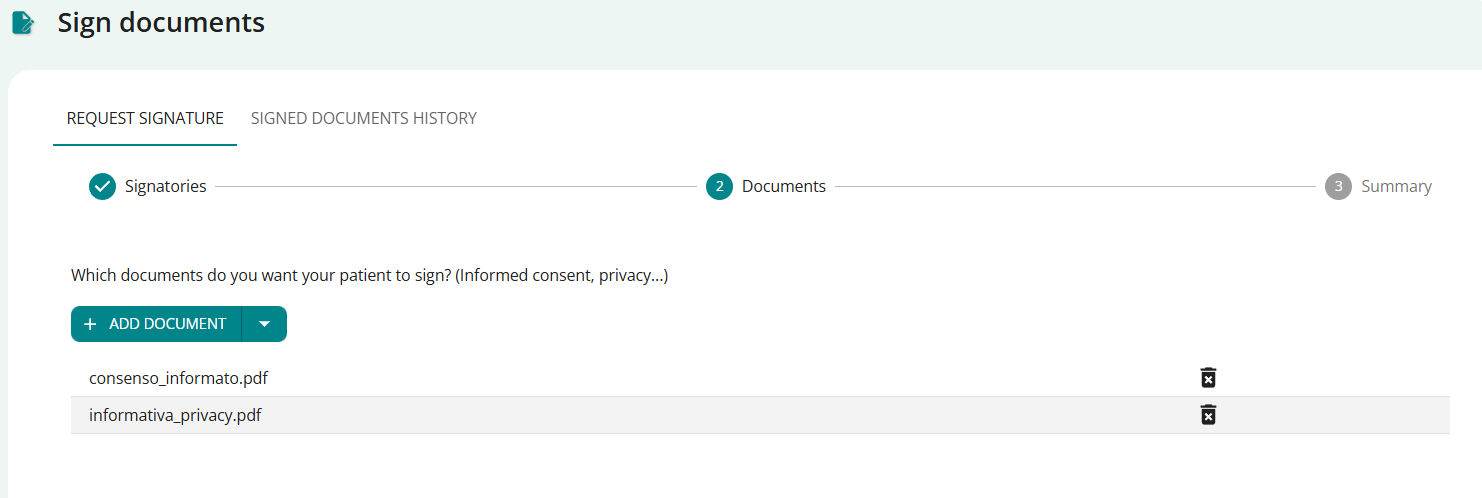
IMPORTANT: When preparing the document, remember to leave enough space for signatures, as in the following image.

- Click on ADD DOCUMENT and select from your documents or your device the document(s) you want to have signed
- click on to possibly remove a document
- Click ADD DOCUMENT to add more documents
- Click NEXT to proceed and access the SIGNATORIES section
Remember: you will always have the option to go back and possibly modify one of the sections before final confirmation.
In the third and final section, called SUMMARY, you will see:
- signatories who will be invited to sign via email
- the document(s) you intend to have signed
- the preview of the document you need to have signed
(If you have inserted more than one document, by default you will see a preview of the first document inserted)- Click on the document preview image to view it in full and to better position the signatures if necessary.
and when you’re done CLOSE the preview to return to the SUMMARY section
- Click on the document preview image to view it in full and to better position the signatures if necessary.
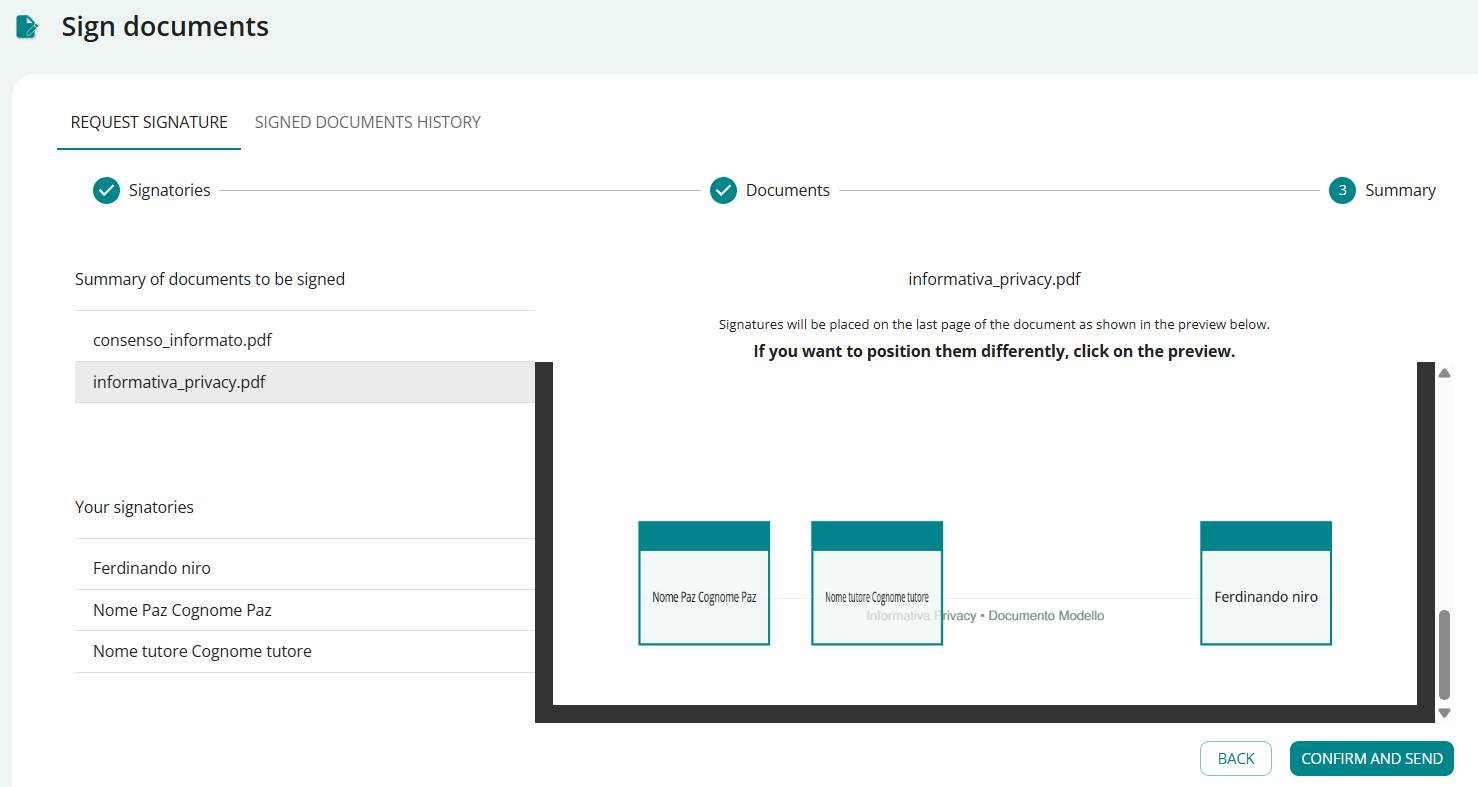
- Click on the other documents in the summary to view the preview
- Click on the document preview image to view it in full and to better position the signatures if necessary.
and when you’re done CLOSE the preview to return to the SUMMARY section
- Click on the document preview image to view it in full and to better position the signatures if necessary.
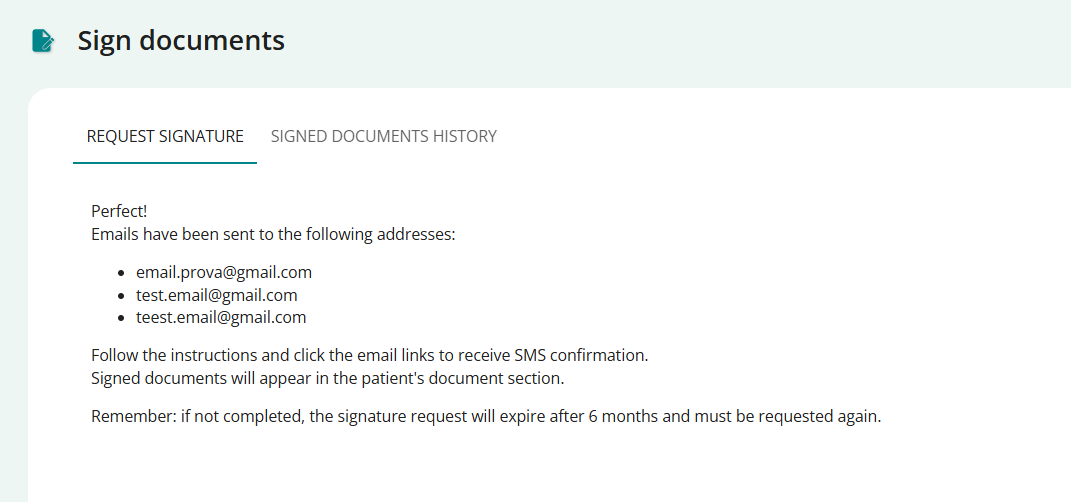
The third step is complete: signatories will receive an email to confirm and complete the signing process.
- Click on NEW DIGITAL SIGNATURE to directly start a new digital signature process in PsyCare
- Click on GO TO YOUR PATIENT to directly view the profile section of the patient you just invited to digitally sign
As a therapist/signer, you will receive an email to confirm and complete the signing process digitally.
From your email, you can proceed with the digital signature in just a few quick steps:
- Open and view the digital signature invitation email
- click on that you see in the email you received
- You will see the signature request to begin the process
- Click START and scroll through the document(s) until you reach the signatures (this step is essential to proceed)
- Click on the SIGNATURE button at the bottom right
- You will see a popup to confirm your identity.
- proceed by entering the code you receive via SMS on your mobile phone
- signature in the pop-up and finish the signing process
- You will see a popup to confirm your identity.
Your documents are signed in accordance with the law!
You can download signed documents immediately or later from the Signed Documents section in PsyCare.
