
TOOn your first login, you will find, in the list of active patients, a test patient (the Test Patient) which will allow you to gain initial experience with the platform, as if it were a real patient. For the trial patient, you will see and have enabled all the features that each of your patients will have in PsyCare.
This will help you become familiar with the platform and you will be able to immediately see how a patient profile is structured and everything that is expected.
For the trial patient you also have the possibility of starting a fictitious video consultation, enabled and functioning exclusively from the therapist’s side, to access the virtual waiting room and the virtual room and view its aspects and functions..
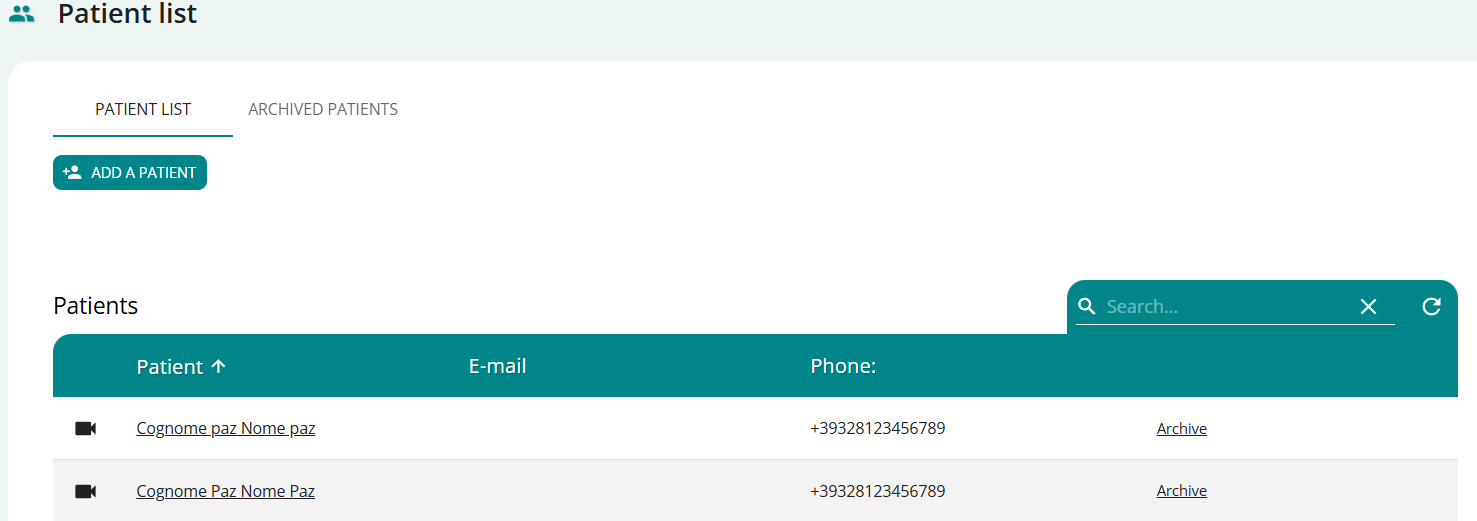
- PATIENT LIST: the information displayed below
- Patient’s first and last name: this field is clickable and links directly to the patient’s profile (completed or to be completed depending on their registration status)
- Patient email: the one you entered when adding the patient (if you haven’t invited them yet; otherwise, the one entered by the patient will appear if they register)
- Patient’s phone number: the one you entered when adding the patient (if you haven’t invited them yet; otherwise, the one entered by the patient will appear if they register)
- “ARCHIVE” function, to allow you to archive patients you are no longer in contact with on the platform, thus updating the number of active patients.
- In your PATIENT LIST you have some features available, in fact you can:
- click on
 ADD PATIENT to ADD A NEW PATIENT to PsyCare [Supporto: Adding and inviting a patient]#atfp_close_translate_span#
 - Click on the patient’s name to CONSULT the PATIENT PROFILE in detail[Supporto: View Patient Profile]#atfp_close_translate_span#
- click on
 to START AN ONLINE SESSION with the corresponding patient[Supporto: Starting an online session]#atfp_close_translate_span#
 - Click “Archive” to archive the patient: they will no longer be active on the platform and will not contribute to increasing the number of patients.
- click on
In the ARCHIVED PATIENTS section you can view the list of all patients no longer active on the platform and have some important features available to you.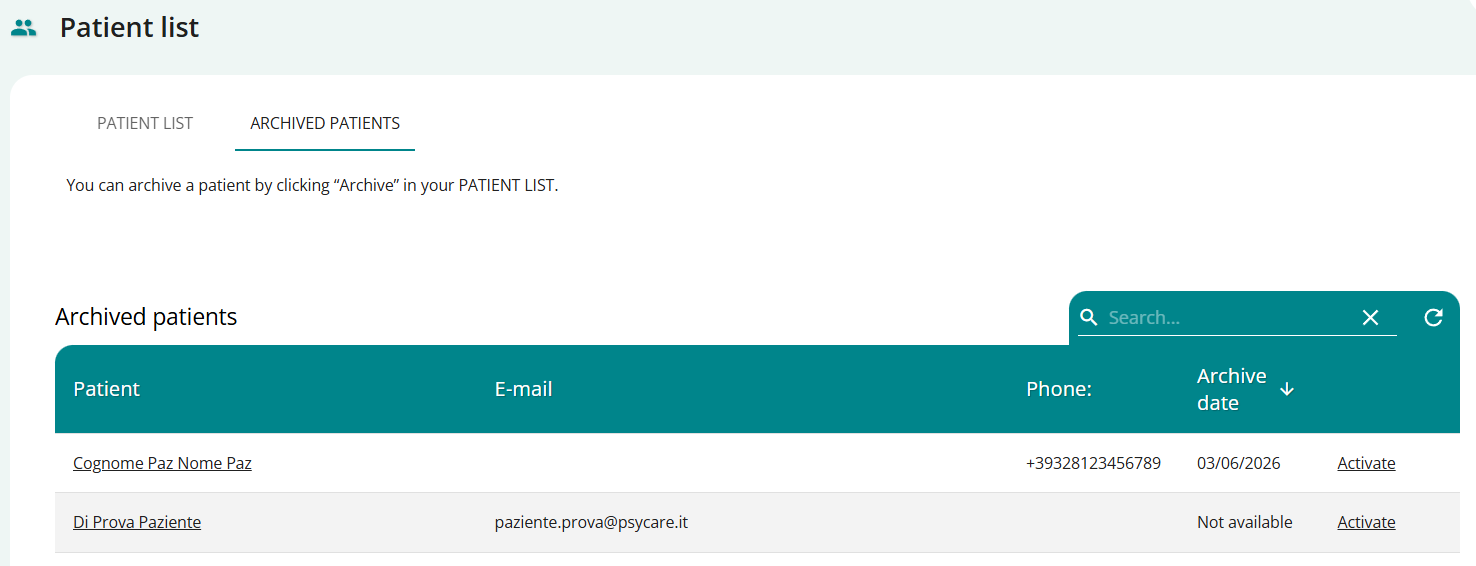
- ARCHIVED PATIENTS: Below is the information displayed
- Patient’s name and surname: the field is clickable and links directly to the patient’s profile
- Patient email: the one you entered when adding the patient (if you haven’t invited them yet, otherwise the one the patient entered will appear if they register)
- Patient’s phone number: the one you entered when adding the patient (if you haven’t invited them yet; otherwise, the one the patient entered will appear if they register)
- Archive date: the day the patient was entered into the archived patients section
- In this section, for each patient you can:
- Click on the patient’s name to CONSULT the PATIENT PROFILE in detail[Supporto: View Patient Profile]#atfp_close_translate_span#
- click ACTIVATE to REHABILITATE THE PATIENT in PsyCare[Supporto: Patient Settings]#atfp_close_translate_span#
- a confirmation pop-up will appear to reactivate the patient in consultation on the platform.
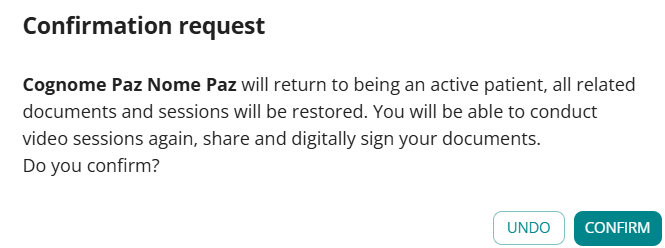
- Click CONFIRM to confirm the patient’s reactivation on the platform
- Click “CANCEL” to cancel the operation and return to the section.
- a confirmation pop-up will appear to reactivate the patient in consultation on the platform.
