
Integrated payment management in PsyCare requires a first ENABLING step in the Payments Section [Supporto: Payments Section]#atfp_close_translate_span# after which you can view the page dedicated to the PAYMENTS section, enabled for the following functionality: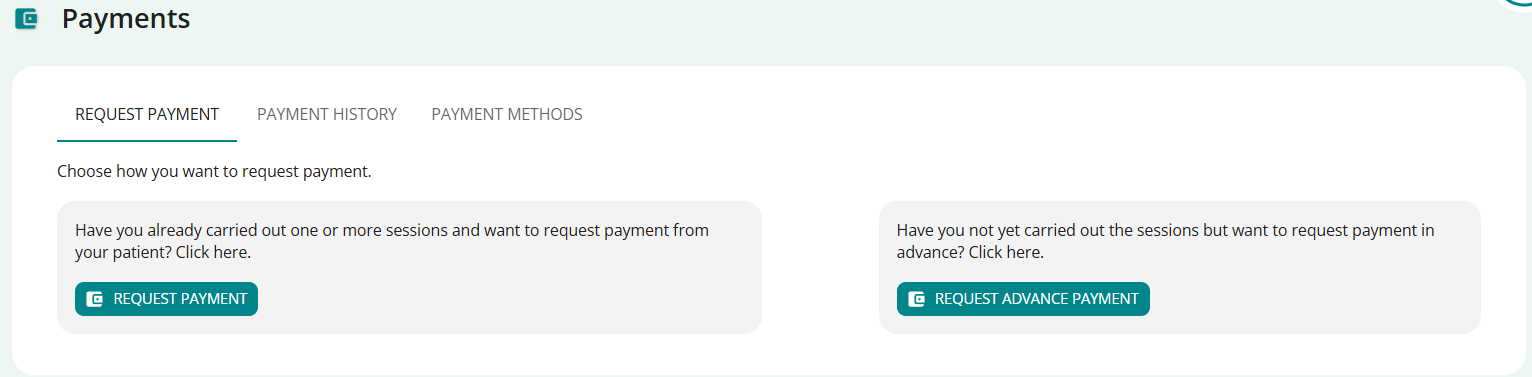
On the page, proceed according to your needs by selecting from the alternatives:
- Request Compensation,
if you want to request compensation for a session already performed. - Request Advance Compensation,
if you wish to request advance payment for a session yet to be performed.
If you have already had one or more sessions and would like to request compensation from your patient, Click on REQUEST COMPENSATION:
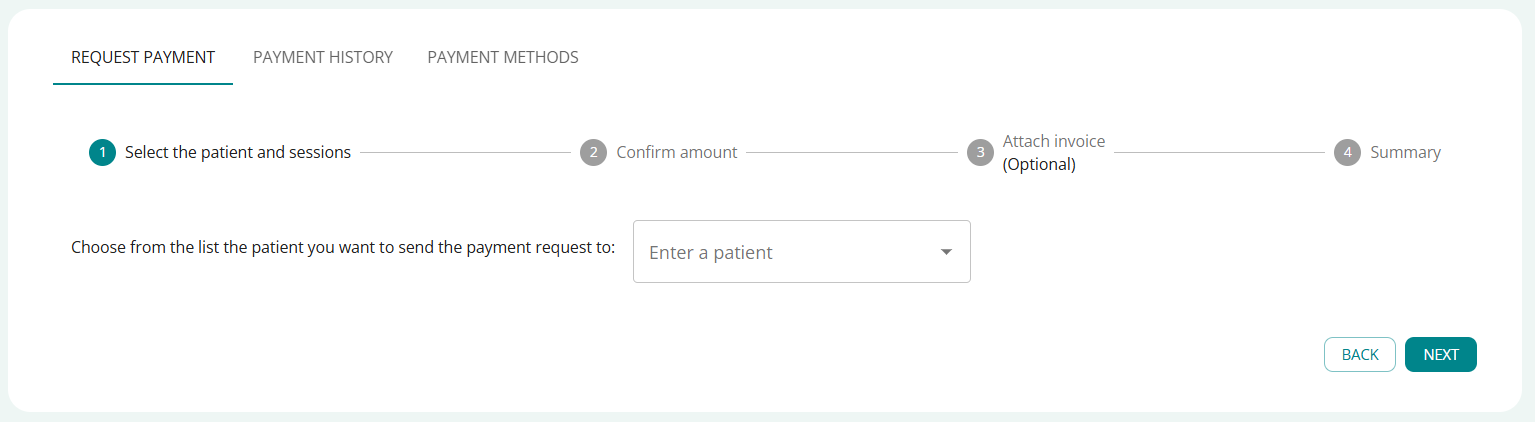
- Click on INSERT A PATIENT and choose from the list or search for the patient
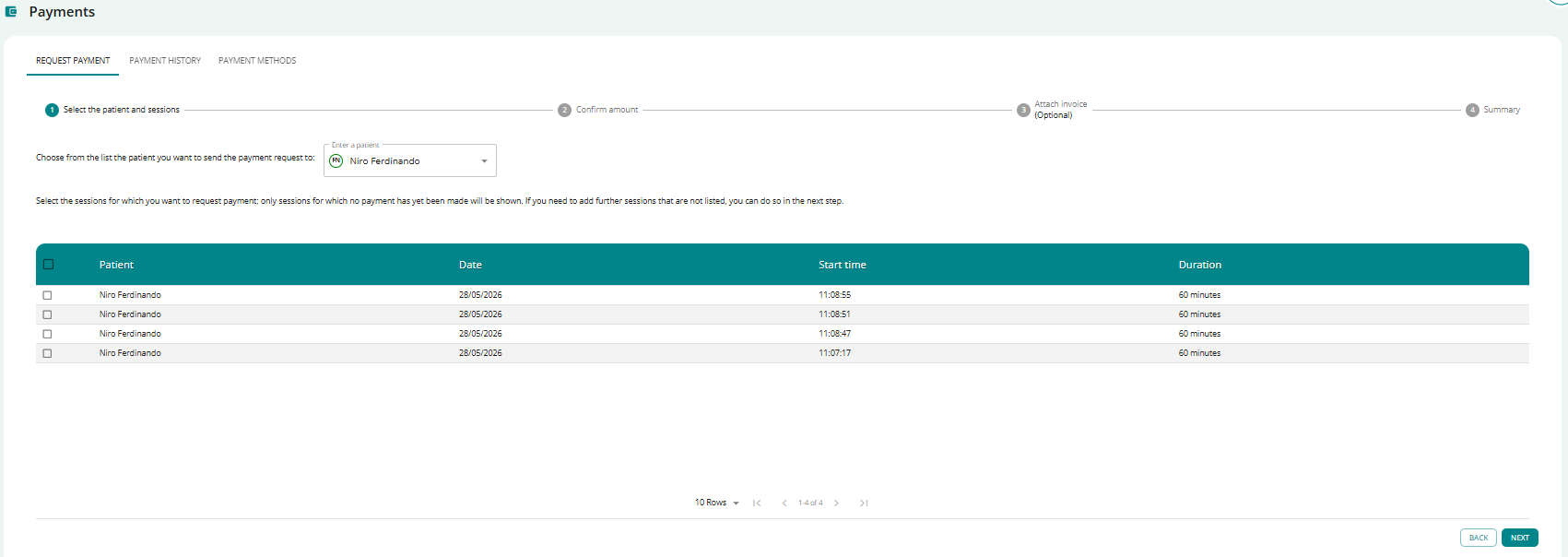
- Select the session(s) for which you wish to request compensation and proceed with NEXT
- you will see the confirmation of the amount and you can add an extra session or proceed with NEXT
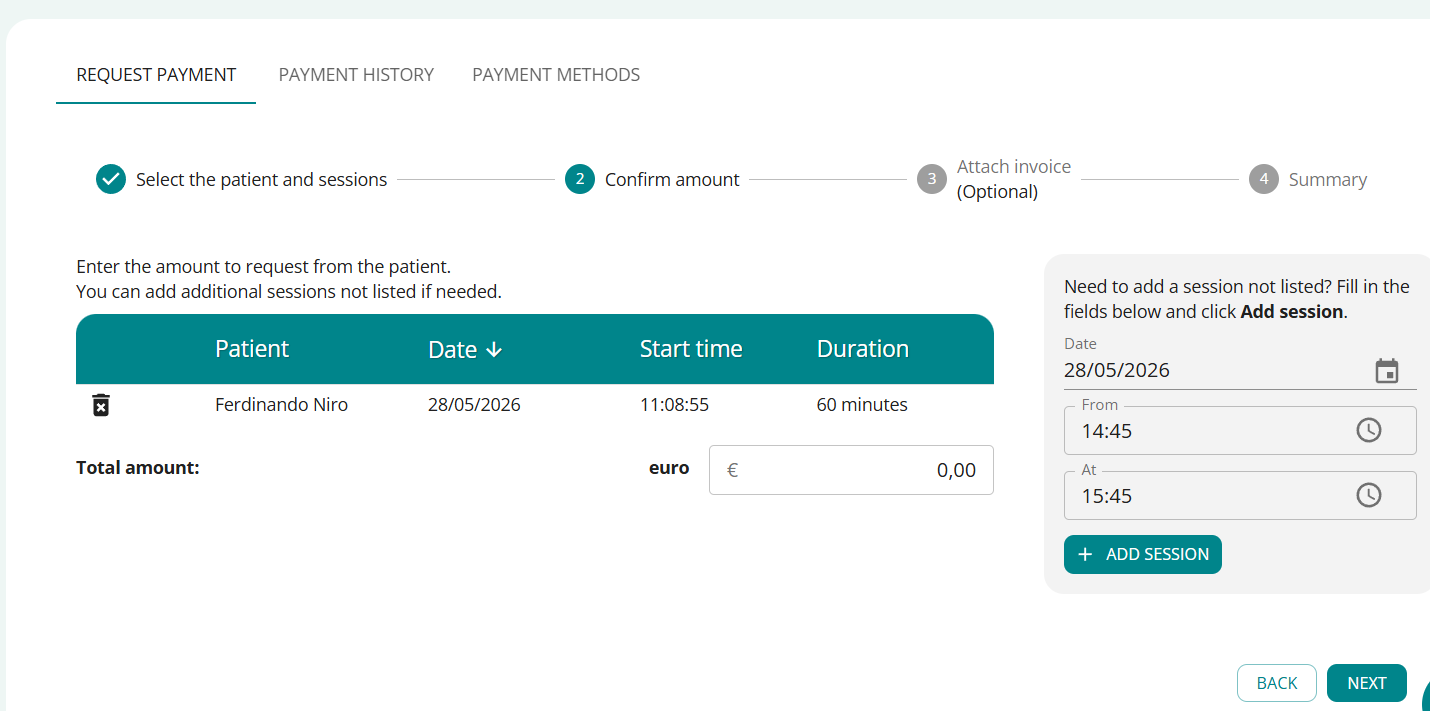
- Click on ADD SESSION after filling in the data of the session to be added and view it.
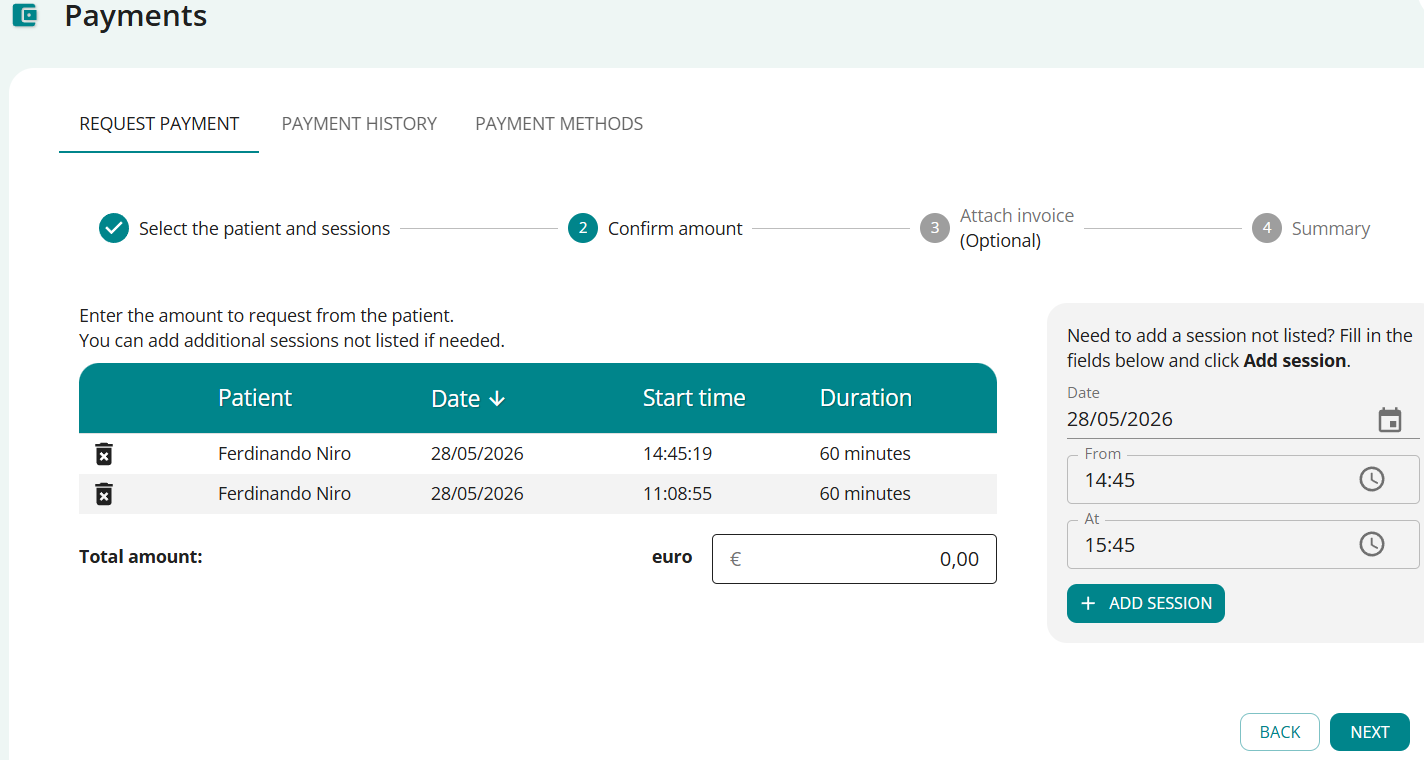
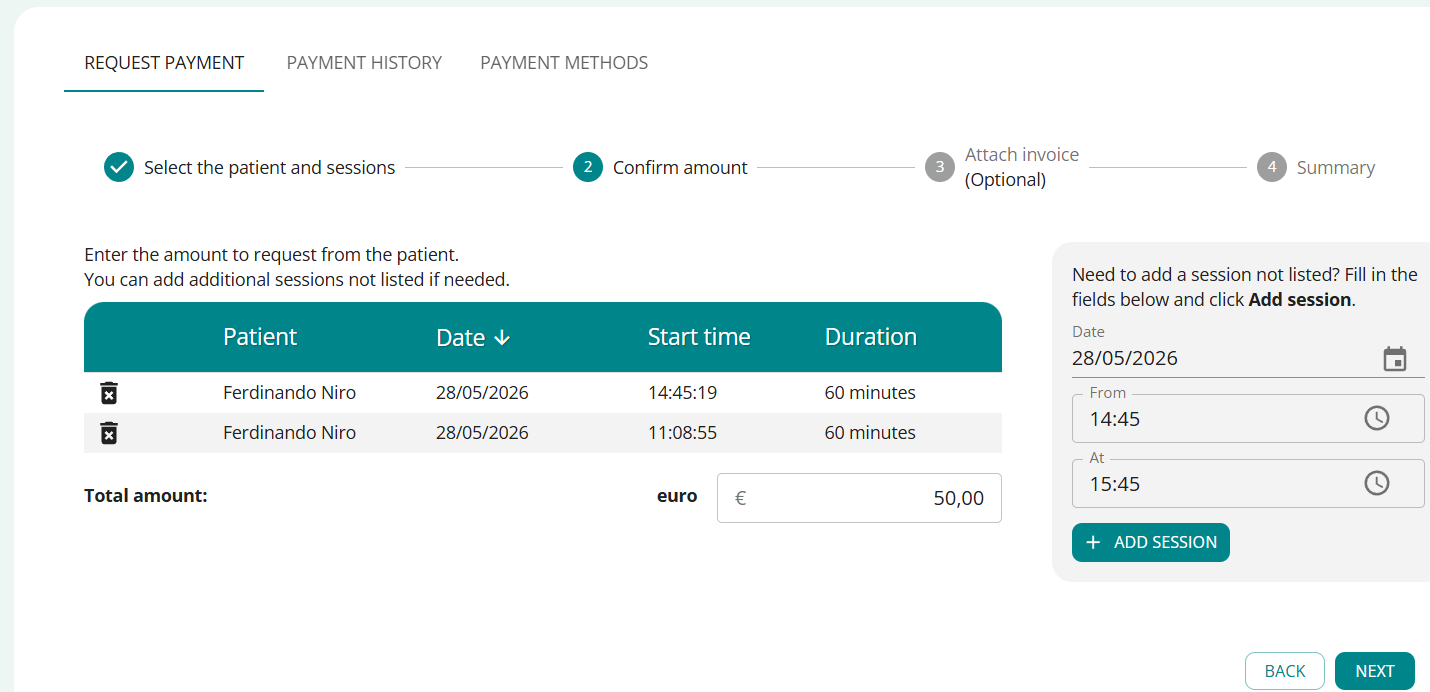
- Enter the total amount of the fee you are requesting for the sessions listed, proceed with NEXT
- Click SKIP if you don’t want to enter any invoices.
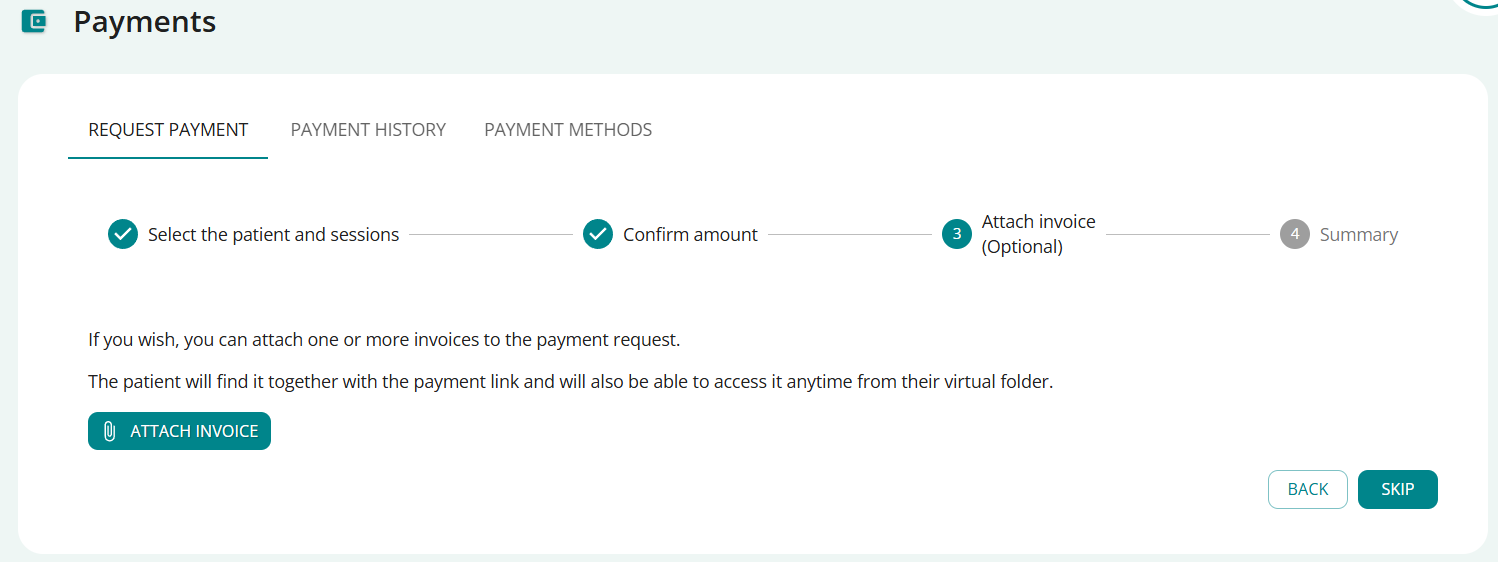
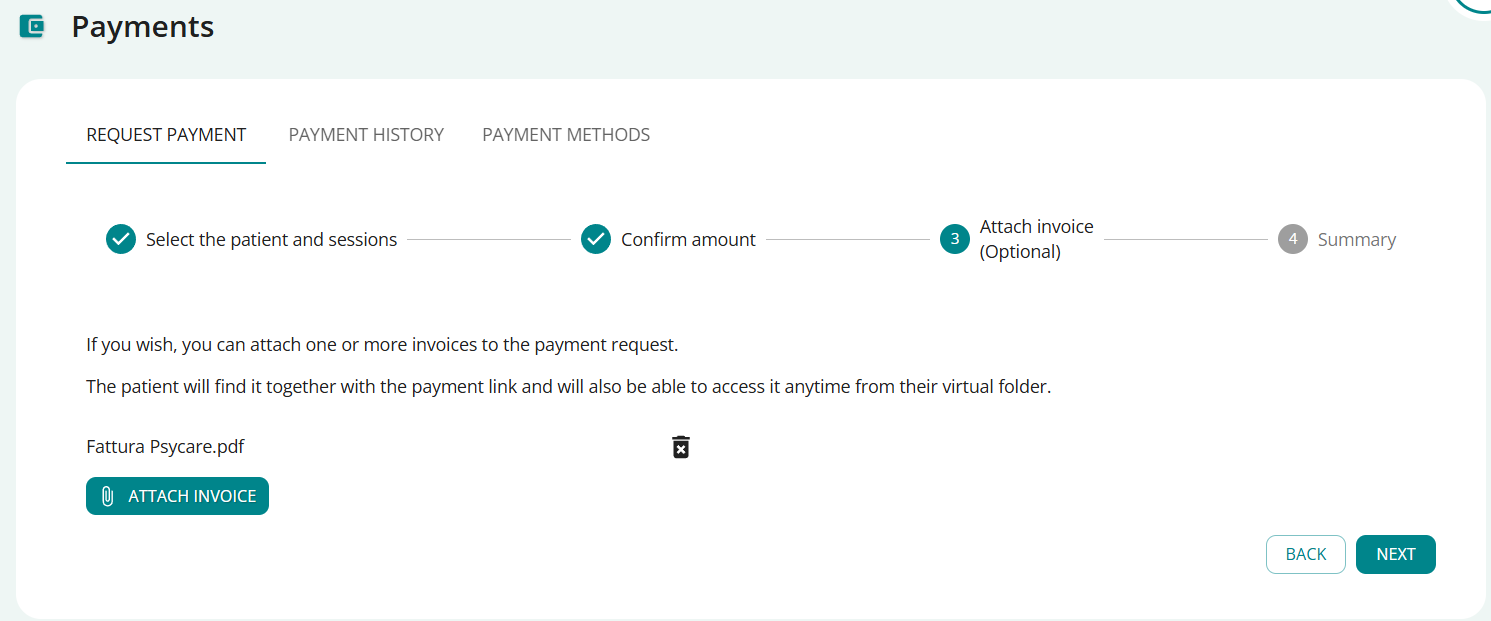
- Click on ATTACH INVOICE to attach one or more invoices to the request for compensation and proceed with NEXT
- view summary
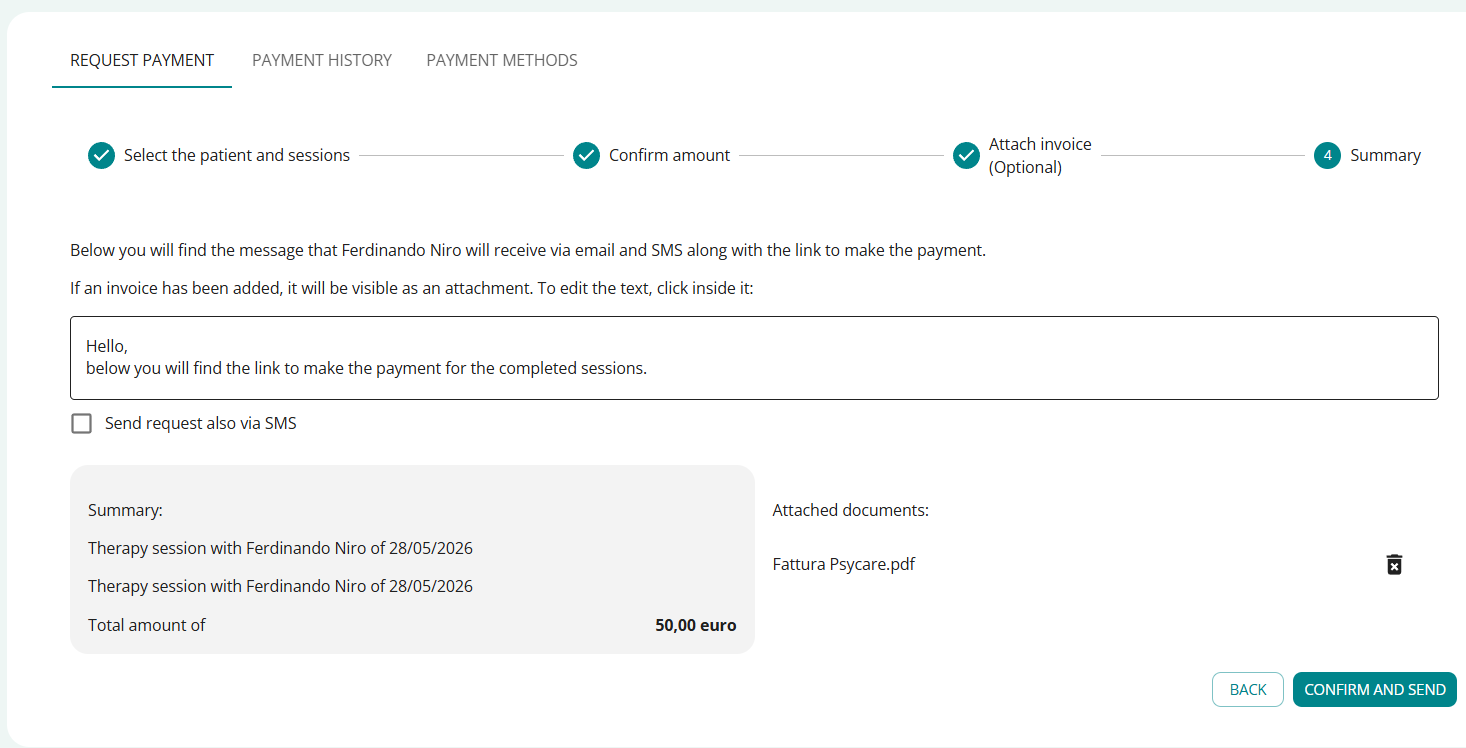
- You can also edit the message to be forwarded to your patient (type it in the highlighted space in the image)
- Click on CONFIRM AND SEND to forward the compensation request: you will see the confirmation popup
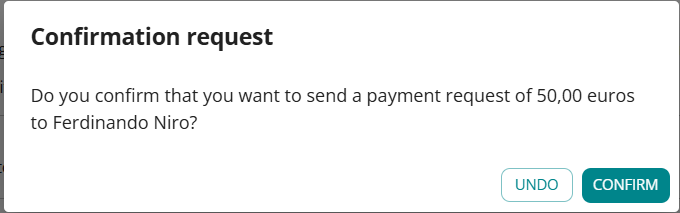
- CANCEL: Cancels the confirmation and returns to the previous screen.
- CONFIRM: concludes the compensation request and you will be redirected to the PAYMENTS section


If you would like to request advance payment from your patient for future sessions, click REQUEST ADVANCE PAYMENT:
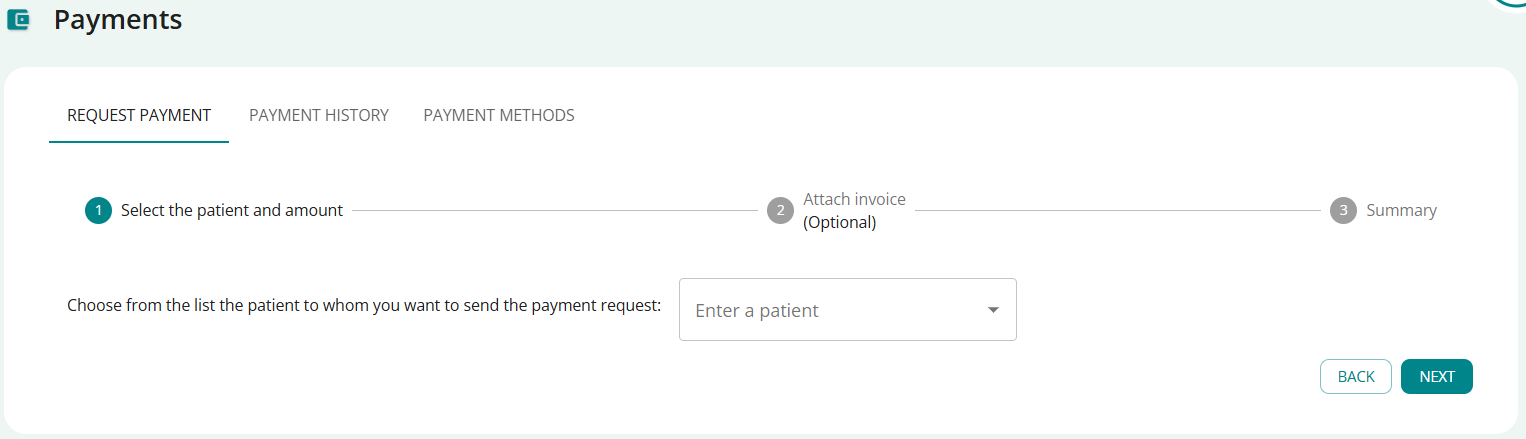
- Click on INSERT A PATIENT and choose from the list or search for the patient
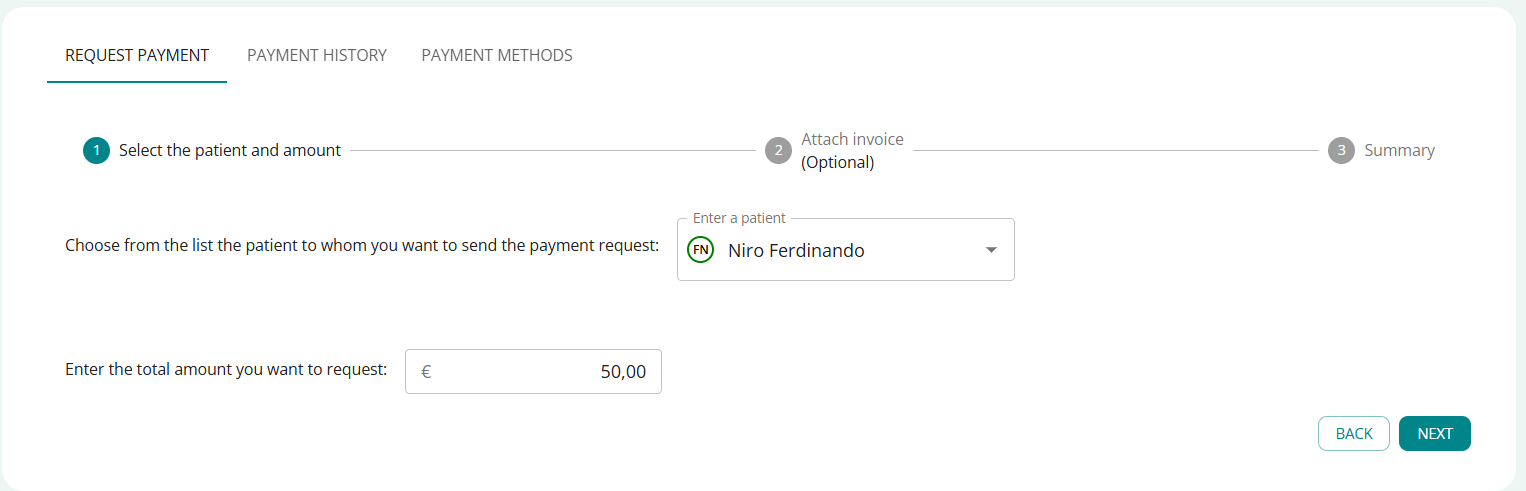
- Enter the total amount of the compensation you are requesting, proceed with NEXT
- Click SKIP if you do not want to attach any invoice to the request for compensation.
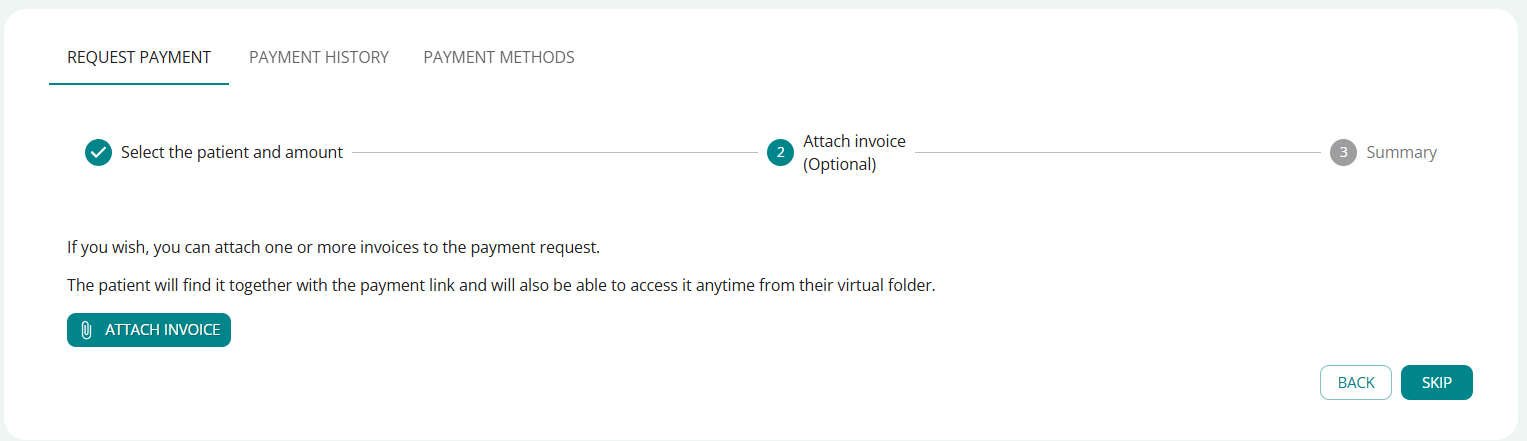
- Click on ATTACH INVOICE to attach one or more invoices to the request for compensation and proceed with NEXT
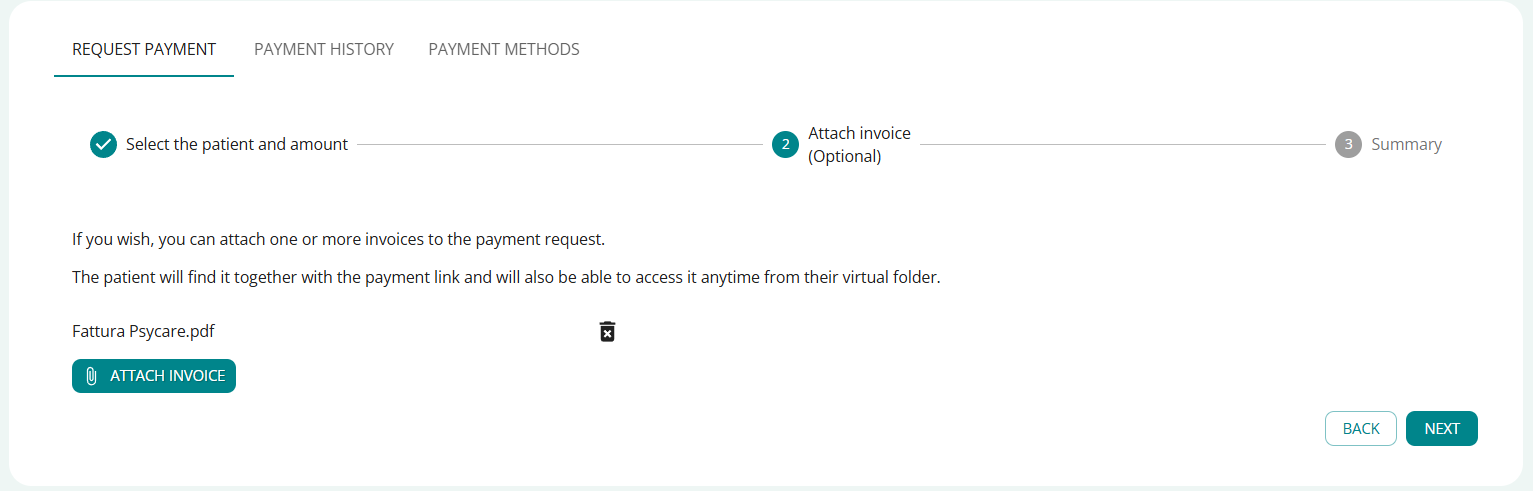
- view summary
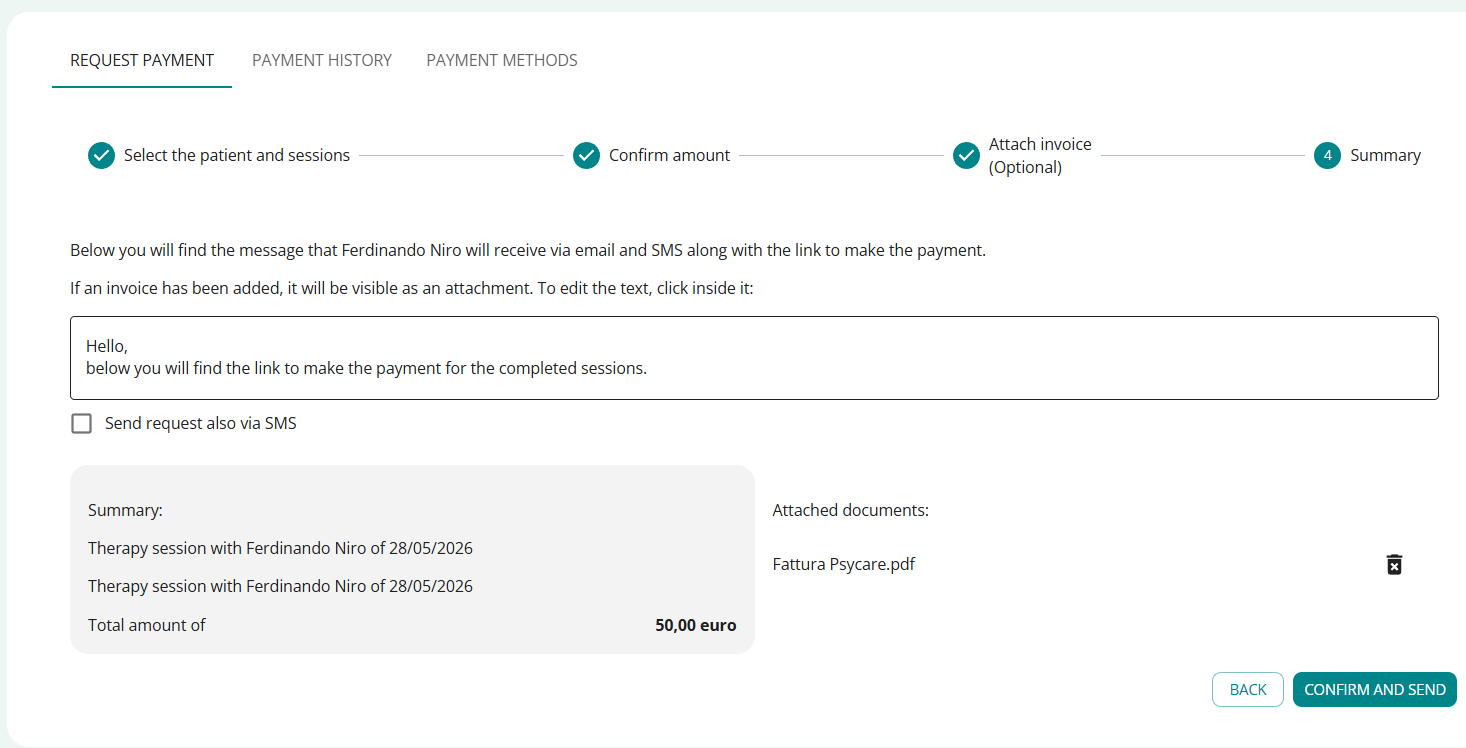
- You can also edit the message to be forwarded to your patient (type it in the highlighted space in the image)
- Click on CONFIRM AND SEND to forward the compensation request: you will see the confirmation popup
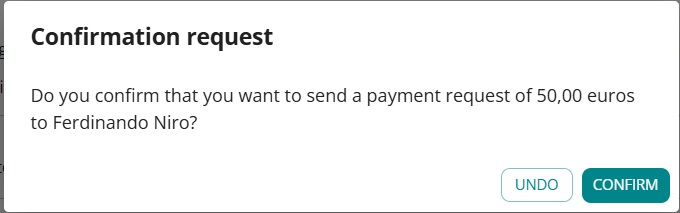
- CANCEL: Cancels the confirmation and returns to the previous screen.
- CONFIRM: concludes the compensation request and you will be redirected to the PAYMENTS section


Your patient will see (after logging in to PsyCare with his credentials) in the Payments section, a list of the payments requested from him with some detailed information.
The patient has the option to make payment in the following ways:
- directly from the platform (by clicking on PAY NOW which appears in the payments to be made section)
- directly from the SMS you receive (by clicking on the link you receive in the message)
- directly from the email you receive (by clicking on GO TO PAYMENT that appears in the email)

You can also view the history of all your payments to PsyCare by clicking on PAYMENT HISTORY.
If you want to see this or other features of the platform in detail patient side, remember that you can see it in the general section of Support, calledPatient[Support: Patient]#atfp_close_translate_span#.
